Monday, June 10, 2013

iOS 7

Apple Just announced about their upcoming Updates for iphones, ipod touch and ipads..

iOS 7 introduces great new features like Control Center, AirDrop for iOS, and smarter multitasking. It also makes the things you do every day even easier, faster, and more enjoyable. And while many of the apps look different, the way you do things feels perfectly familiar. So from day one, you know how to use the world’s most advanced mobile OS.In its most advanced form.

check out this video to know more about the new features of this iOS 7

video source : http://www.youtube.com/watch?v=rT_OmTMwvZI

Cherry Mobile Omega HD 2.0 Review


Check out this awesome review of the great Cherry Mobile Omega HD 2.0

Credits : Rappler
Source : http://www.youtube.com/watch?v=sLc6t8_HBCQ

Sunday, June 9, 2013

Cherry Mobile Jelly Bean Updates

Jelly Bean update is now available for all Cherry mobile Users,

Visit here the list of the Cherry mobile service center

http://www.cherrymobile.com.ph/content/cherry-mobile-customer-solutions

Difference between Ice Cream Sandwich and Jelly Bean


Credits to : victoriatagg
Source : http://community.giffgaff.com/t5/Blog/Ice-Cream-Sandwich-VS-Jelly-Bean/ba-p/5582214


Before comparing Ice Cream Sandwich and Jelly Bean, it's worth clarifying that we're talking about versions of Google's mobile operating system here, not confectionaries.


Ice Cream Sandwich is Android 4.0, Jelly Bean is the latest version, Android 4.1.

Ice Cream Sandwich came on the scene towards the end of last year and it was a huge revamp from its predecessor Gingerbread, it had an entirely new style set and looked great.

Jelly Bean however is more of a refinement than a visual overhaul like ICS was.The core interface remains unchanged with five home screens, shortcuts and widgets. These can be added in the same way on ICS and Jelly Bean, however in Jelly Bean, the widgets are more intelligent, moving around to accommodate you, rather than sitting static once positioned.

The notifications bar has also been refined in Jelly Bean. This is a bar at the top of the screen on all Android phones which can be pulled down to display notifications like missed calls and email alerts. In Jelly Bean, an expanded view is available for these notifications whereas in Ice Cream Sandwich, there's just a small fixed view, showing less information.

Google has also tweaked the gallery slightly in Jelly Bean. Now, pinching all the way out of your pictures will take you to a scrolling marquee of your images, which is very easy to browse through.

The final key difference between the versions of Android is something altogether less tangible and it's called Project Butter. Project Butter ensures a 60 frame per second steady frame rate, translating to a much smoother user experience across the UI. It makes touch input feel instantly more responsive and it means Android now competes visually with iOS and Windows Phone.

So there you have it, the battle of the confectionaries is complete and you should feel informed as to how Android 4.0, Ice Cream Sandwich stacks up against Android 4.1, Jelly Bean.

Saturday, June 8, 2013

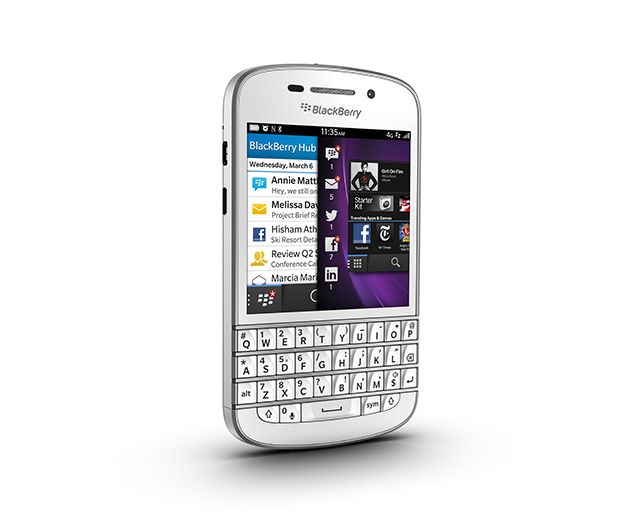
Globe's Blackberry Q10


Credits to JM Balicano of MobileTechPinoy
Source : http://www.mobiletechpinoy.com/tech-news/globe-blackberry-q10-goes-live-on-june-7/


If you thought the Blackberry Z10 took its sweet time coming here, the Q10 seems to have taken an even longer detour. To put things in perspective, both these devices were announced back in January. Well, here we are a full 6 months after and it looks like the Blackberry Q10 has finally arrived on our shores.

However, if you are a subscriber of any other telecom other than Globe, you’re going to have to wait another month. Why? Because Globe happens to have a 30 day exclusivity period! The Globe Blackberry Q10 is scheduled to become available in the country by June 7 through their postpaid plans, but interested subscribers can already start ordering the Q10 online.


Get it in white!

Interested in getting your hands on the Blackberry Q10? It can be yours for as low as Php1,499 monthly through Plan 999 with a monthly cash out of Php500 on a 24 month contract. What’s great is that you also get unlimited LTE surfing at up to 42Gb speeds with your monthly peso consumable that you can convert into call, text or surfing combos.

Of course, you don’t have to get locked into a standard 24 month contract if you don’t want to. Globe MySuperPlan also offers flexible contract periods from 6 to 30 months. And you also get the full flexibility of being able to mix and match the combo and booster services you want so you can get a plan that is tailored to you.

“Our postpaid leadership is once again brought to life with this partnership with BlackBerry as Globe gets first dibs on the latest BlackBerry smartphone that’s about to hit the Philippine market,” said Raul Macatangay, Head of Globe Postpaid. “Filipinos are huge BlackBerry users, and we’re excited to be the first to offer the BlackBerry Q10 under our best-ever MySuperPlan, which promises to bring the best BlackBerry smartphone experience ever as we take plan customization and personalization a notch higher, where subscribers get the ultimate flexibility in creating a postpaid plan that best fits their needs, lifestyle, and budget.”

Interested in getting the best QWERTY smartphone in the market? Head on over to the Globe Blackberry Q10 order site here.

Cherry Mobile Fusion Wind Full Specs

Recently Cherry Mobile announced on their Facebook page about their first 8-inch tablet named Cherry Mobile Fusion Wind. Fusion Wind also comes with a free Cherry Mobile MF1 and boast a 1.5GHz Dual-Core Processor, 1gb RAM, 4gb Internal Storage, 2 mega-pixel back camera + VGGA front camera, HDMI port and Runs in Android 4.1 Jelly Bean.

source :http://www.mobiletechpinoy.com/previews/cherry-mobile-fusion-wind-revealed-in-back-to-school-promo/


Cherry Mobile Fusion Wind Specifications
1.5GHz Dual-Core Rockchip RK3066 Processor, Cortex-A9
8-inch XGA (1024x768) IPS capacitive display
160ppi with 5-point multi-touch feature
Android 4.1.1 (Jelly Bean)
ARM Mali-400 MP GPU
1GB of RAM
4GB of internal storage
microSD card slot up to 32GB
2MP fixed-focus camera (NO LED flash)
VGA (0.3MP) front camera
1080P Full HD video playback
(NO Bluetooth and GPS support)
WiFi 802.11 b/g/n / WiFi Hotspot
USB-OTG (Support external 3G dongle)
MicroUSB 2.0 / HDMI port / 3.5mm audio jack
Accelerometer / Gravity Sensor
Li-Ion 4,000mAh battery
Usage time up to 4 hours
Standby time up 10 hours
200 x 150 x 10mm (dimension)
437g (weight)

Price: Php5,999 with FREE Cherry Mobile MF1
Availability/ Release Date: Now available nationwide!

Inside of the Box

Cherry Mobile Fusion Wind
Power adapter
USB OTG Cable
USB Cable
User Manual

How to ROOT Cherry Mobile Flare


This was Originally Created/Written by : Marvs
Source : http://www.infohiway.net/2013/01/tutorial-how-to-root-your-cherry-mobile.html

After tinkering with your Cherry Mobile Flare, sooner or later you'll be needing to root your phone for whatever reason. And whether this is your first time or nth time to this process, you wanna make sure that it will not make your phone unusable.


This tutorial in rooting your Cherry Mobile Flare is meant to make the steps as simple and easy as possible that's why I also included a video showing you how I rooted my own unit. As always, make sure that you follow steps carefully and don't rush.

DISCLAIMER: Rooting can brick your phone and will also void its warranty. DO IT AT YOUR OWN RISK. I'm not responsible for any possible damage that may happen to your device.


I basically used the same procedures from my previous article on How to Root MyPhone A919 Duo.

How to change boot animation of Cherry Mobile Flare
How To Change Boot Logo/Splash Image Of Your Android Phone

Before Rooting:

Download to your computer this Root Tools zip file that contains PdaNet for Windows XP/Vista/7 and Root with Restore by Bin4ry> DOWNLOAD HERE
Unzip the file after download
For Windows 7/8/Vista, after unzipping, right click RunMe then click on Properties > click the Compatibility tab > check Compatibility and set it to Windows XP SP3 > Ok
Enable USB debugging on your phone. Go to Settings > Developer Options > USB Debugging.
Don't connect your phone to the computer until you're told to do so. Rooting your Cherry Mobile Flare:

On your PC, double click on PdaNetZ350 and continue with the installation until you see a pop-up message like the one below.


Select Others then click OK.
A warning message will appear saying that "Windows can't verify the publisher of this driver software." Click on "Install this driver software anyway"


PdaNet will now ask you to connect your device to the computer. Connect your phone to your computer via USB cable. Don't enable any modes like USB storage, etc.
Let the driver installation complete then finish.
On your PC again, double click on RunMe.


A command prompt window will pop-up. Press 1 and hit the Enter.

NOTE: If you want to UNROOT your Cherry Mobile Flare, follow step 6 onward until you reach this point but instead of typing 1, type x then hit enter and follow the instructions after that.


On your phone, tap “Restore my data”, this will reboot your phone, wait for your phone to be fully ready.
On your computer, the command prompt will require you to press any key to continue.
That's it! You've successfully rooted your Cherry Mobile Flare. How to Root Cherry Mobile Video:


How to check if your phone is rooted:
Install this Root Checker App to your phone. Download Here
Run the app and tap on Check Now
It should show the status of the phone.


If you enjoyed this article and wish to receive more great articles from me then don't forget to subscribe to my regular Email Updates to receive Latest Articles in your Mailbox. You can share your thoughts and insights by using the comment form below.